SYSTEM SETTINGS
System Settings - MIDI




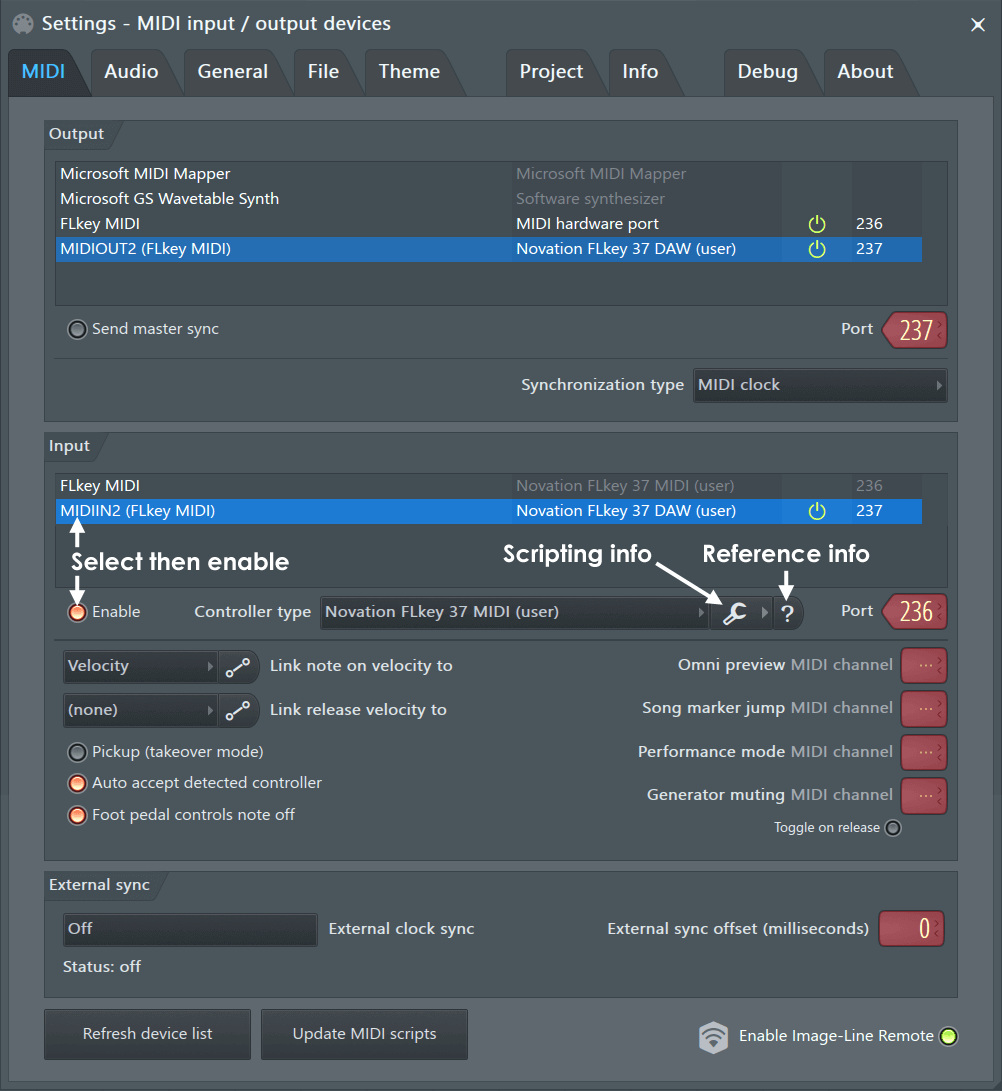
To open the MIDI Settings choose 'Options > MIDI settings' from the main menu or press the F10 function key on your keyboard. The MIDI Settings page contains settings for MIDI driver input, output and syncing. It also contains options related to MIDI keyboard recording and automation. For a list of supported MIDI devices, see Pre-configured MIDI Devices. NOTE: If you have never connected a MIDI device to FL Studio before, we recommend reading the MIDI Wizard section of the manual first.
NOTE: MIDI does not transmit audio, it is a control-data connection (keyboard notes, knob movements, sound/program changes).
Basics of connecting a MIDI Device
- Input device - Select the device in the Input list (e.g. 'Launchpad S' is selected above)
- Enable device - Click the Enable button and FL Studio will now receive MIDI from that device. If you are successful the MIDI activity light on the Main Panel will blink each time controller data is received (e.g. playing notes and twisting knobs). NOTE: If the 'Debug log' is open any MIDI data received by FL Studio is displayed and logged, useful for learning the MIDI CC numbers of controls or troubleshooting connections.

- Controller type - For specially supported controllers or MIDI Scripts, select the Controller type or MIDI Script from the menu ('Novation Launchpad S' controller type is selected in the screenshot). Some devices will be automatically detected, most will not.
- Input and Output Ports - Specially supported controllers may require their Port number be set to the same number in the Input and Output lists ('Novation Launchpad S' is set to Port 115 in the screenshot). If this is not already done automatically, you can set it manually. Any number between 0 and 255 can be used. Avoid using the same Port number for different devices or they will conflict.
MIDI Output
These options are used to select a MIDI Output interface, so FL Studio can send MIDI signals to outboard gear (Synthesizer, Drum Machine, Sampler, etc). Click on the MIDI output interface to be used, once an interface is selected it will become highlighted. For each interface selected you can make independent 'Send master sync' and 'Port number' settings. While only one MIDI Output interface can be used with FL Studio at a time, you can daisy-chain multiple MIDI devices to the Output interface, see the note below.
- Output - List of detected MIDI devices in or connected to the system. Click devices in the list to set independent 'Send master sync' and 'Port' options.
- Send master sync - Sends FL Studio's transport (start/stop/pause play) commands to the enabled device/s. NOTES: Don't enable 'Send master sync' if the device does not use transport control as it can cause unpredictable behavior, or crashes, in the external MIDI device. There is also a 'Global' sync option that must also be selected under the Options menu > Enable MIDI master sync. This enables/disables, as a group, all MIDI devices with Send master sync selected here.
- Port - This is a unique channel over which MIDI data is communicated between MIDI devices (256 Ports are available). The option assigns a Port number to your MIDI interface (Port numbers don't apply to external MIDI hardware attached to a MIDI interface, just the interface itself).
To map an output MIDI device
- Port - Make sure the MIDI Out plugin/s you use to control external MIDI hardware is set to the same MIDI Port number as selected here. The Port number chosen is not important. Selecting '---' will free the MIDI interface for use by other MIDI software.
NOTE: Make sure global Enable MIDI output is selected in the Options menu, 'MIDI output' will be disabled otherwise.
- Send master sync - If the device has an internal sequencer or other functions that make use of transport (start/stop/pause play) commands, enable this control. Otherwise leave it off.
NOTE: Make sure Enable MIDI master sync is selected in the Options menu, 'Send master sync' will be disabled otherwise.
- Synchronization type - Sets the synchronization type. This is the time/code format used for syncing MIDI devices to play/start/stop commands, etc. MIDI clock is normally used. See the manual associated with your external MIDI device/s for details.
NOTE: MIDI allows you to daisy-chain a number of external MIDI devices. Connect the PC to the MIDI Output interface, then connect the first external MIDI device to the MIDI OUT and/or MIDI IN of the Output interface. Then connect subsequent MIDI devices to the OUT or THRU ports of the device preceding them in the chain. Make sure to set each MIDI device in the chain to send MIDI data OUT or THRU its own MIDI ports, as this may not be on by default (see the manual/s that came with the device/s).
MIDI Input
These options are used to connect to external MIDI input devices. FL Studio will connect to a wide range of external MIDI controllers and MIDI hardware.
External MIDI Clock
There are two options:
- Set an external MIDI Clock - See External Sync (below).
- Use FL Studio as a plugin - See FL Studio as a VST/AU plugin
Connecting External Controller/s
These options are used to select MIDI Input devices. If you have a USB/MIDI keyboard or controller it can be used to control FL Studio. The Input section displays a list of controller devices that have been detected by the Operating System.
- Input - Lists detected devices that can be used for MIDI control of FL Studio, for example MIDI/USB piano-keyboards and external MIDI/USB knob-controllers. To select a device click on the name in the list and select the enable switch below. FL Studio is preconfigured to work with a number of controllers as indicated in the Controller type list.
- Enable - Enables the selected controller. Each device in the list can be independently enabled/disabled.
- Controller type - FL Studio supports all generic MIDI controllers. If your controller does not have a custom driver, select USB Audio Device (generic controller) in this menu. Don't be concerned about using a 'Generic' driver if your device is working correctly. However, as 'custom drivers' supply the device name and any 'special' functions the controller may have, it's worth checking if your controller is in the list of custom MIDI controllers. These allow support for 'unique' controls such as transport functions, jog wheels, ribbon-strips, relative knobs, motorized faders and custom switch controls. If your device has a custom driver but does not show in this list by name OR nothing is showing, try re-installing the driver that came with the device (check the manufacturers web-site for the latest USB driver, these are usually on the technical support or downloads section).
- Information menu - Click the Spanner icon / ? area to show a menu:
- Controller help - Opens the Script forum. If your controller does not have native support, and you want to unlock features OR you want to customize how it works, you can write custom MIDI scripts for it, or look for user created ones in the MIDI Controller Scripting forum. After a script has been created it will show in the Controller type menu as [script name](user).
- MIDI Controller support forum - Opens the MIDI Controller Reference List for the selected controller (if it exists).
- Port - MIDI input port. For use with multiple controllers and Performance Mode. NOTE: Piano roll recording is disabled in Performance Mode.
Controlling Instruments, Effects and FL Studio
- To assign MIDI controllers to Instrument Channels see Linking Controllers to Play Instrument Channels. You can also Lock Controller Notes to Instrument Channels.
- To create permanent links between a controller, FL Studio and plugins use the 'Multilink controllers' switch with the 'Override global links' option.
- Supported controllers: For the latest list of supported devices visit the MIDI Controller Reference forum.
- Controller templates - There are a number of controller templates in the FL Studio installation folder (\Program Files\Image-Line\FL Studio\System\Hardware specific). These templates are loaded into the editor that came with your controller and will map it to FL Studio. You may then be required to select the controller type in the Input settings (if FL doesn't do so automatically).
Miscellaneous MIDI options
- Pickup (takeover mode) - When selected: Linked target parameters won't change until the physical controller's value matches the target parameters current setting. Once these values match the controller will 'pickup' and start to change the target parameter in the direction of the controllers movement. When deselected: The value of linked target controls will instantly snap to whatever value the physical controller outputs when it is first moved and continue from there. Takeover mode has the advantage of not causing unexpected jumps in target parameter values that may cause unwanted glitches or noises that can happen when a parameter suddenly changes value (such as a filter cutoff or sample start position).
- Auto accept controller - Used when linking controller knobs/sliders to FL Studio and plugins. When selected, the MIDI Remote Control pop-up will close as soon as you tweak (move) the control on your external MIDI device and the link will be made. If this option is deselected, you will need to click the OK button on MIDI Remote Control pop-up to accept the controller link and then close the box.
- Foot pedal controls note off (how MIDI CC#64 is used) - If selected, foot-pedals sustain the length of notes recorded in the Piano roll. That is, the note-off event is triggered by the release of the pedal. HOWEVER, when 'Foot pedal controls note off' is selected, MIDI Pedal CC#64 messages never reach the plugin, as it's captured by FL Studio. If you are using a VST plugin that needs sustain-pedal events, for its own purposes, deselect 'Foot pedal controls note off' for the sustain effect to work as expected, with that plugin.
- Omni Preview MIDI channel - When set, a MIDI Channel from your controller will (starting at C5) play each Channel in the Channel Rack. Use this for percussion/loop-triggering where each Channel Sampler holds a unique sample or loop
- Performance mode MIDI channel - For use with generic controllers to trigger Clips in Playlist window (in Performance mode). This also enables the Typing Keyboard to trigger clips when set to Channel 1.
- Song marker jump MIDI channel - Set the MIDI channel to be used to accept MIDI note data to control Playlist Time Marker jumping. See Playlist Time Markers section for more details.
- Generator muting MIDI channel - Lets you set a channel on your MIDI keyboard, where each keyboard key mutes/unmutes a channel in the Step Sequencer.
- Toggle on Release - Determines how momentary buttons/switches on the MIDI controller interact with target controls in FL Studio. When enabled, the target control will change state when the button is pressed and revert back to the original state when the button is released. If off, a second click is required to revert the target back to its original state.
- Link note on velocity to - [none] - If this option is selected, FL Studio will ignore note-on velocities sent by controller
input devices (MIDI keyboards, etc.) and assign a fixed velocity to all notes (a MIDI velocity of 100 or 78% is used, 127 = 100%). Velocity enables mapping note velocity from MIDI
devices to per-note velocity sensitive plugins in FL Studio. Mod X / Mod Y MIDI key note on velocity is mapped to Mod X or Mod Y and passed to
any instruments or effects using these MOD parameters.
- Curve - Opens the Velocity Mapping Curve editor. This curve sets the relationship between the MIDI controller (note on) velocity and the value passed to FL Studio.
Control points can be added with right-mouse clicks and function curves by Left-clicking on the tension handle, as with any envelope editor in FL Studio. For the curve to take effect 'Note on' must be
linked to one of the options shown above. TIP: If you play your controller while the Velocity Mapping Curve editor is open, the note velocity will be visible as a vertical line. This will help you
to tune the curve shape to your playing style.
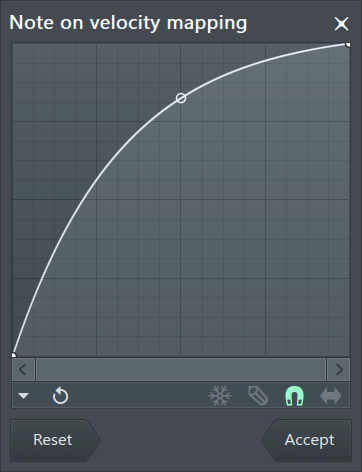
- Curve - Opens the Velocity Mapping Curve editor. This curve sets the relationship between the MIDI controller (note on) velocity and the value passed to FL Studio.
Control points can be added with right-mouse clicks and function curves by Left-clicking on the tension handle, as with any envelope editor in FL Studio. For the curve to take effect 'Note on' must be
linked to one of the options shown above. TIP: If you play your controller while the Velocity Mapping Curve editor is open, the note velocity will be visible as a vertical line. This will help you
to tune the curve shape to your playing style.
- Link release note velocity to - [none] - If this option is selected, FL Studio will ignore release velocities sent by controller
input devices (MIDI keyboards, etc.) and assign a fixed release velocity (100) to all notes. Release - Some MIDI keyboards can send the velocity of a note release, if so
this enables mapping of note release velocity from MIDI devices to per-note release velocity aware plugins in FL Studio. For the curve to take effect 'Note on' must be
linked to 'Release'.
- Curve - Opens a velocity mapping editor. This allows you to set the relationship between MIDI controller 'note release' velocity and the value passed to FL Studio.
Control points can be added with right-mouse clicks and 'between point' curves by Left-clicking on the tension handle as with any envelope editor in FL Studio.
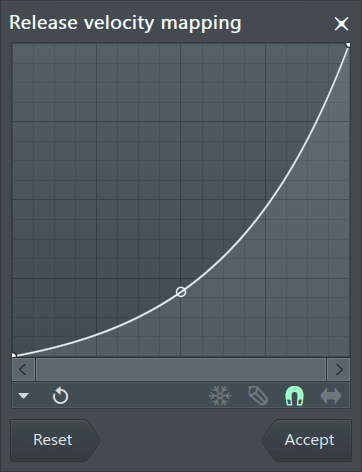
- Curve - Opens a velocity mapping editor. This allows you to set the relationship between MIDI controller 'note release' velocity and the value passed to FL Studio.
Control points can be added with right-mouse clicks and 'between point' curves by Left-clicking on the tension handle as with any envelope editor in FL Studio.
- Refresh device list - If you install a controller after FL Studio has started, or a controller that appears in the Input list becomes unresponsive, this option will rescan and connect to the device.
- Update MIDI Scripts - Checks the Image-Line servers for updated MIDI Scripts for supported controllers and downloads them. Normally FL Studio does this automatically, but you can force a spot-check and download with this button. NOTE: Downloaded MIDI Scripts are located under your User data folder in ... Documents\Image-Line\FL Studio\Settings\Hardware. In the Hardware folder there will be a device-named .ini file and device-named folder for each supported device. If you want to force a clean install you must delete the .ini file and folder for target devices. Then click Update MIDI Scripts.
External Sync
FL Studio can sync to an external MIDI clock. Set 'External Sync > External clock sync' to the MIDI device you want to sync (slave) to. You can also use FL Studio as a VST/AU plugin inside the host application. FL Studio will also send MIDI Clock sync so you can control the MIDI hardware using FL Studio as the master MIDI device, see the MIDI Output section.
- External clock sync - Select the device FL Studio will sync to.
- External sync offset (ms) - Positive settings move FL Studios response earlier and negative settings delays it, relative to the external source.
IMPORTANT NOTE: Synchronizing with external MIDI sources is likely to result in the malfunction of tempo-dependent effects, such as delay lines (Delay 3 for example). This occurs because MIDI tempo input often carries slight fluctuations in values that are incompatible with plugins designed to sync precisely to a constant tempo.
Image-Line Remote
- Enable Image-Line Remote - Enable this option and open the IL Remote application on your Android or iOS device. The first time you activate this control you will need to allow FL Studio access through any firewalls by negotiating the usual security pop-ups. After that, the application and FL Studio will automatically find each other over the network and connect.
- Enable feedback (Right-Click) - IL Remote will control the position of knobs and sliders in FL Studio.
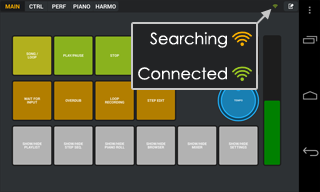
Image-Line remote is a free Android & iOS controller application with visual feedback that connects to FL Studio over a WiFi network. IL Remote can be configured to perform as a transport, mixer, clip trigger, keyboard or controller of your own design. Check the IL Remote manual entry here. Alternatively check here online for the latest details on how to get the App Image-Line Remote.
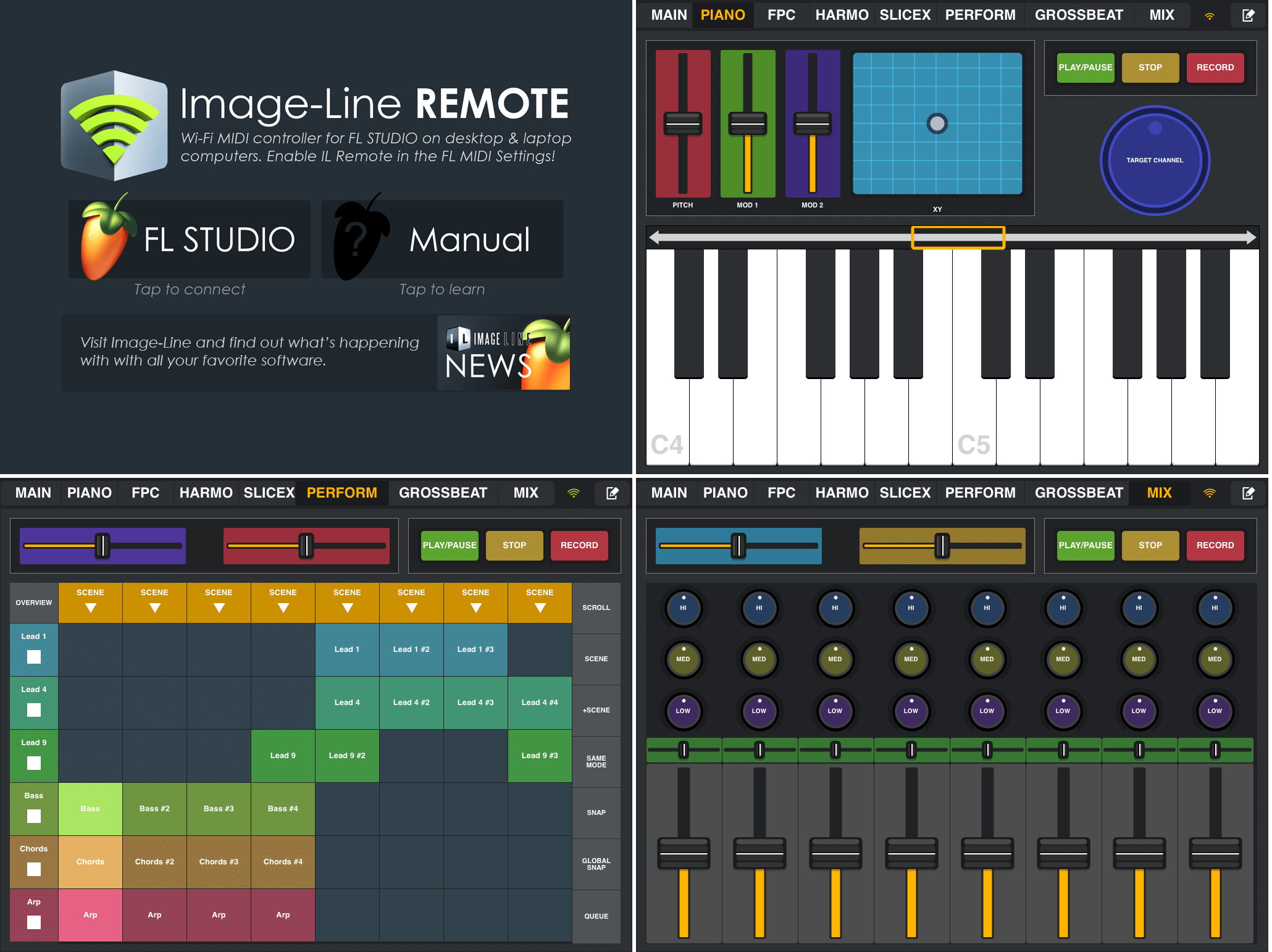
TIP: Use the MAIN tab to control FL Studio from your phone or tablet device while you are in another room or remote from your computer to start or stop recording, control headphone levels etc.