AUTOMATION & RECORDING
Import MIDI Data Dialog (*.mid) 
The Import MIDI data dialog appears when you import MIDI files that contain note and/or automation data.
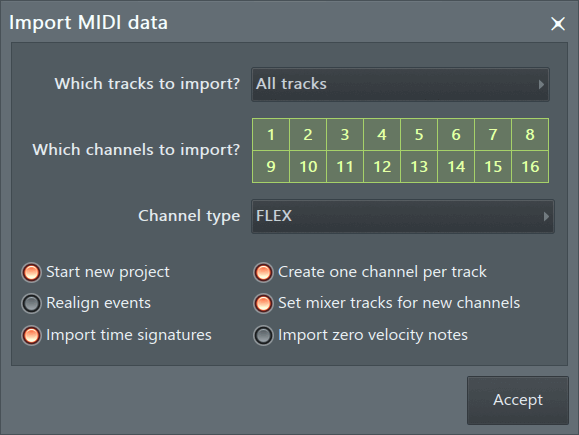
NOTES:
- Import Dialog (shown above) - Hold (Shift) to supress the import dialog showing OR hold (Alt) to force show it when dragging and dropping MIDI files onto FL Studio targets (Piano roll, Channel Rack etc).
- Format (.mid) - FL Studio only imports .mid format not .midi.
- MIDI is not audio - It's note and automation data. It needs to be read by an instrument before you can hear it. The reason you can play many .mid files on your computer is that the operating system assigns the MIDI data to the inbuilt synthesizer/samples in your audio device (see the section on playing General MIDI files below).
How to import MIDI data
The options on the MIDI import dialog will change depending on how the MIDI file is loaded into FL Studio. Options are:
- Import a MIDI file from the Main File menu.
- Import a MIDI file from the Piano roll menu.
- Drag a MIDI file from the Browser and drop on:
3.1 Channel Rack.
3.2 Piano roll.
3.3 FL Studio desktop.
Importing CC Automation (sustain pedal, controller movements or similar): Some MIDI files may include sustain pedal or similar automation CC (Continuous Control) data. This must be loaded separately into the pattern containing the MIDI note information as follows:
- Select the Pattern in FL Studio that contains the MIDI note data (as imported above).
- Go to the Plugin Menu > Browse Parameters
- Locate specific CC target associated with the CC automation data you want, e.g. CC64 (sustain). Right-Click the CC target in the Browser and select 'Edit events'.
- From the Event Editor Menu > Options > Edit > Import MIDI File.
- Choose and import the MIDI file containing the CC automation data.
NOTE: Make sure to use the same import options as for the MIDI note data. Specifically 'Realign events' should not be used as the MIDI note and CC automation will probably end up out of sync.
Options
- Which Tracks to Import - Click the drop-down menu to select which MIDI tracks to import. A track is usually associated with a MIDI Channel and contains a particular instrument's data ('Piano', 'Melody', 'Drums', etc.), there may be up to 16 MIDI tracks, what you will see depends on the data file to be imported.
- Which Channels to Import - Select the MIDI Channels to import. Left-click a Channel number (selected channels are marked in red) to include it in the import, Right-Click to exclude a Channel from the import.
- Channel type - To play a MIDI file, according to the General MIDI Sound Set, choose between:
- FLEX - Using the 'General Midi Library' sound bank.
- MIDI Out - MIDI Out set to the tracks Channel number. In this case you will need to link each MIDI Out to external General MIDI ready hardware, or internal VST plugins.
- MIDI Out with Fruity LSD - MIDI Out connected to the Fruity LSD plugin, a Windows only internal General MIDI synthesizer.
- Blend with existing data - The MIDI data will be blended with any data already in the pattern/s.
- Start new project - Opens the MIDI file in a new project. If this option is deselected, any data in the Instrument channels for the selected pattern will be overwritten.
- Create one channel per track - Imports each MIDI channel (1 to 16 possible) in the MIDI file as a separate Instrument channel and loads an instrument .
- Set mixer tracks for new channels - Routes Instrument Cannels to consecutive free Mixer Tracks.
- Realign events - Removes any empty-space at the start of the file.
- Import time signatures - Add time signatures from the MIDI file to the Pattern / Piano roll.
- Import zero velocity notes - Treat notes with a velocity of zero as 'Note ON', instead of, the default, 'Note Off' messages.
Action buttons
- Accept - Accept changes and close the tool. Note, these changes can be subsequently undone using the Current project History or Ctrl+Z.
Playing General MIDI Files
Just as a text file is not speech, MIDI files are not audio. They are note and controller data. Consequently we will need to assign instrument plugins for each track in the MIDI file and set them to the expected sound. Fortunately, this is automated when you select Channel type to FLEX (or MIDI Out with Fruity LSD) and Create one channel per track.
- Import the MIDI data using the 'Create one channel per track' option (see above). NOTE: the import method will determine if you see the 'Create one channel per track' option, use 1 or 3.3 (above).
- The Channel type option will decide if FLEX or Fruity LSD is used to play the selected sounds.
- Press play and enjoy the cheesy world of 'General MIDI'. We recommend replacing the General MIDI sounds with better plugin instruments before someone catches you!